 710
710 Your FT-710, on a real console.
A native Windows application for the Yaesu FT-710. Full CAT control, the radio's own spectrum and waterfall straight off the USB cable, two-way USB audio, and encrypted remote operation with nothing more than a share code.

The whole front panel, built for a big screen
Every control on the console maps to a real FT-710 CAT or USB capability. If the radio can't do it, the console doesn't pretend to.
Radio spectrum & waterfall
Read directly from the FT-710's internal scope over its USB SPI bridge and drawn with Direct3D. Span, averaging, contrast, peak, level and waterfall speed are all adjustable.
Complete CAT control
VFO A/B, split, band stacking from 160 m to 4 m, mode, step, filter width, AGC, IPO/AMP, attenuator and the RF/SQL knob, all read back from the rig.
RX DSP
Width and shift with a live passband view, notch, DNF, contour, DNR and NB. The filter graphic shows exactly what the rig is doing.
USB audio, both ways
Listen on your PC speakers or headphones and transmit from your PC microphone, with MIC, PROC and AMC, TX EQ, TX profiles and VOX.
Meters & analysis
S, PO, SWR and ALC meters driven by live rig data, plus an AF-FFT and an oscilloscope of the receive audio.
Operating tools
Memories, profiles, a logbook, RX recording, CQ1–CQ3 voice clips, ATU and TUNE, all kept locally and preserved across upgrades.
A closer look at the console
Captured from the Beta 1 build, connected to an FT-710 on COM4.
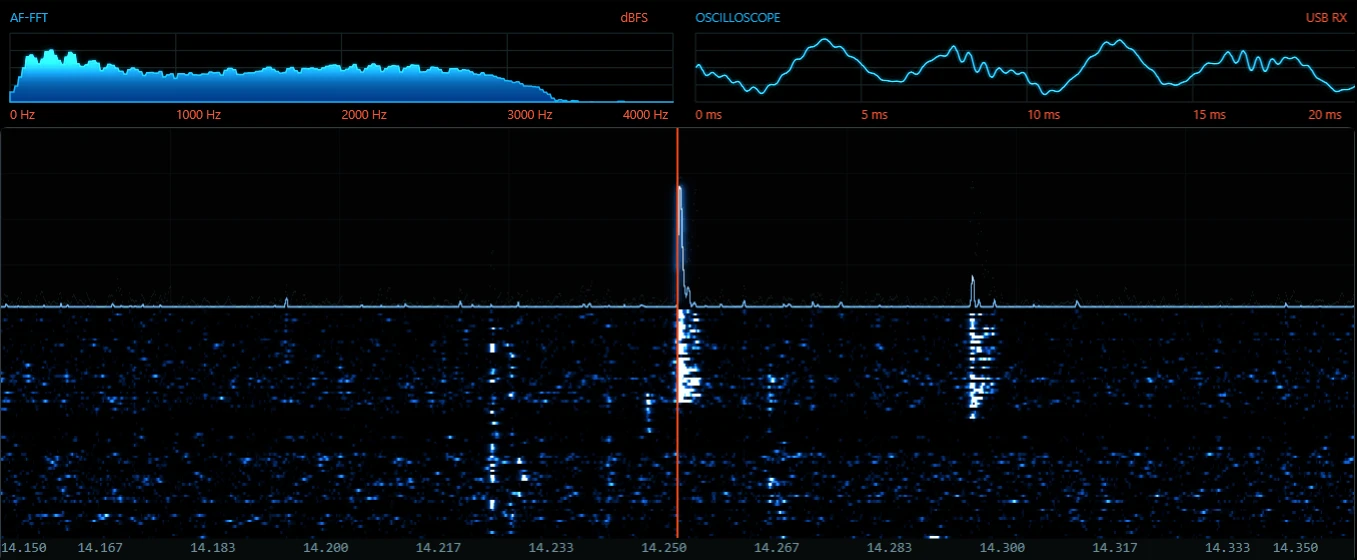
See the band, not a guess
The FT-710 exposes its scope over the same USB cable as CAT. 710 Console reads it directly, so what you see is what the radio sees.
- Waterfall with frequency axis and tuned-frequency cursor
- AF-FFT and oscilloscope of the receive audio
- Span, averaging, speed, peak and level controls
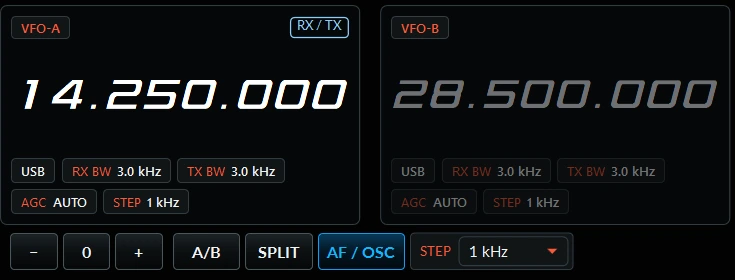
Dual VFOs you can read across the room
Both VFOs show mode, RX/TX bandwidth, AGC and step at a glance. The active VFO is lit and the other stays visible.
- A/B, split and tuning step
- Band and mode buttons for one-click changes
- RX/TX state shown on the active VFO
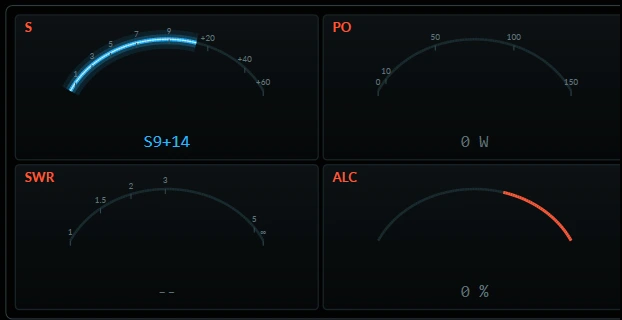
Four meters, always on
S-meter on receive; power out, SWR and ALC on transmit. Arc meters with numeric readouts, updated from live rig data.
- S-units with +dB over S9
- PO in watts, SWR and ALC
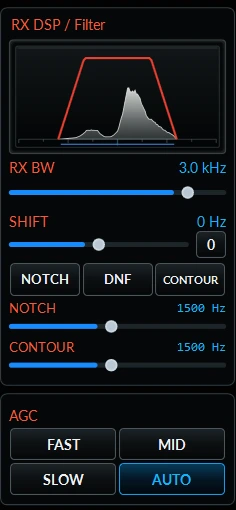
Shape the passband visually
The passband graphic moves as you change width and shift, over the live audio spectrum, so you can see what you're cutting.
- RX BW and SHIFT
- NOTCH, DNF and CONTOUR with frequency control
- AGC FAST / MID / SLOW / AUTO
Share a code. Operate from anywhere.
No IP addresses, port forwarding or VPN. Both PCs make outbound encrypted connections to the 710 Console relay, which pairs them using a short-lived, single-use code.
- The station PC stays in charge. Only it touches the radio, and remote commands are checked before they run.
- Opus audio in 20 ms packets with an adaptive jitter buffer
- Control, audio and scope run on separate channels, so scope traffic never delays PTT
- Codes are 9 characters, expire after 5 minutes and work only once
From download to on-air in minutes
The installer includes everything the app needs. You don't have to install .NET, Python or any developer tools.
Run Setup
One UAC prompt. Installs to Program Files with a Start Menu shortcut and an uninstaller.
Accept drivers
If you choose driver setup, it downloads the CP210x driver from Yaesu and the D2XX driver from FTDI, then checks their Microsoft signatures before installing.
Plug in the FT-710
One USB cable gives the console CAT, the spectrum interface and USB audio.
Follow the assistant
Four pages: Radio, Spectrum, Audio, Test. The microphone test never keys the transmitter.

Download 710 Console Beta 1
Install it, connect your radio and put the console through its paces.
certutil -hashfile 710Console-Beta1-Setup.exe SHA256 and compare the result with the hash above.What to expect
Ready to use
- Local CAT control, spectrum/waterfall and USB audio
- Remote operation with share codes via the public relay
- First-run assistant and in-app audio device selection
- Settings, logbook, memories, CQ clips and recordings are kept when you upgrade
Beta limits
- The installer isn't code-signed yet, so SmartScreen may warn you
- One remote operator per station session
- Driver downloads depend on Yaesu and FTDI keeping their files available. If a download fails, the assistant gives you the official link.
- Expect rough edges. If you hit one, send a bug report.
Questions
What do I need?
A Yaesu FT-710, a 64-bit Windows 10 or 11 PC and the radio's USB cable. For remote operation you need a second Windows PC, and both need internet access.
Is the spectrum really from the radio?
Yes. The FT-710 has a USB SPI bridge (FTDI FT4222) next to its CAT port and audio codec. 710 Console reads the radio's own scope data through it, so the display isn't made from the receive audio.
Which drivers get installed, and are they safe?
The Silicon Labs CP210x virtual COM driver for CAT, from Yaesu, and the FTDI D2XX driver for the spectrum interface, from FTDI. Setup downloads them from the vendors only after you accept their licences. It checks each package's hash and Microsoft driver signature before installing, and it never runs a downloaded program. USB audio uses the driver built into Windows.
Do I need to open ports on my router for remote?
No. Both the station and the remote connect outbound to the relay over TLS. On the station, click Enable Remote and Generate Code. On the remote, paste the code and click Connect.
What happens if my connection drops while I'm transmitting?
The station PC controls PTT. The remote has to send a heartbeat every 150 ms while transmitting. If none arrives for 500 ms, or the relay, audio or app fails, the station unkeys the radio on its own.
Where are my settings stored? Will upgrading lose them?
Your settings, logbook, memories, CQ clips and RX recordings are stored in %LOCALAPPDATA%\FT710Remote. They stay in place when you install a new version or uninstall the app.
Found a bug? Have an idea?
Send it straight to the developer. Every message from the beta gets read.
For bug reports, it helps to include
- What you did, what happened, and what you expected
- Your Windows version and whether you were local or remote
- The band, mode and control involved, if relevant
- Whether it happens every time or only now and then